Screen by Screen
What each screen shows
The device rotates automatically through whichever of these you've enabled. Tap the screen at any time to pause the rotation, or to jump forward.
🕐 Clock Always on
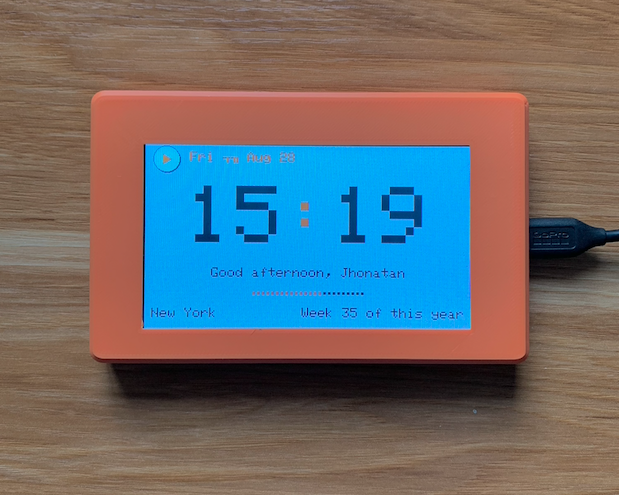
Large time display with the date, a day-progress dot strip, the current week number, and a friendly greeting that changes through the day. If you've searched for a city under Weather, its name appears here too.
📷 Add screenshot
assets/screens/clock.png
📷 Add screenshot
assets/screens/clock.png
🌤 Weather Channels tab
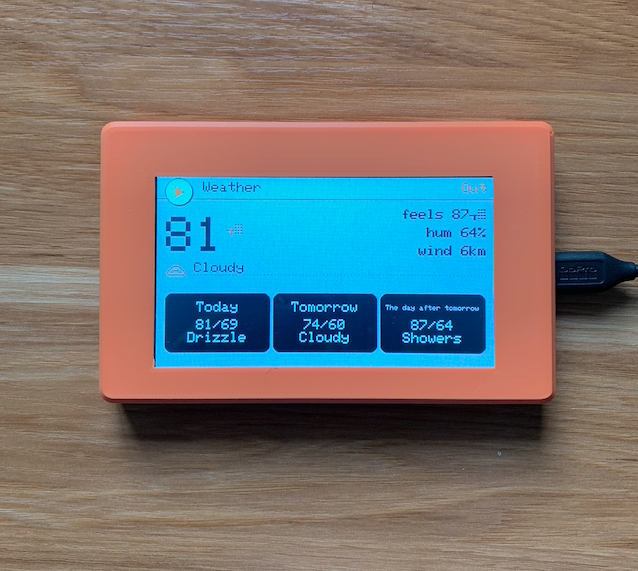
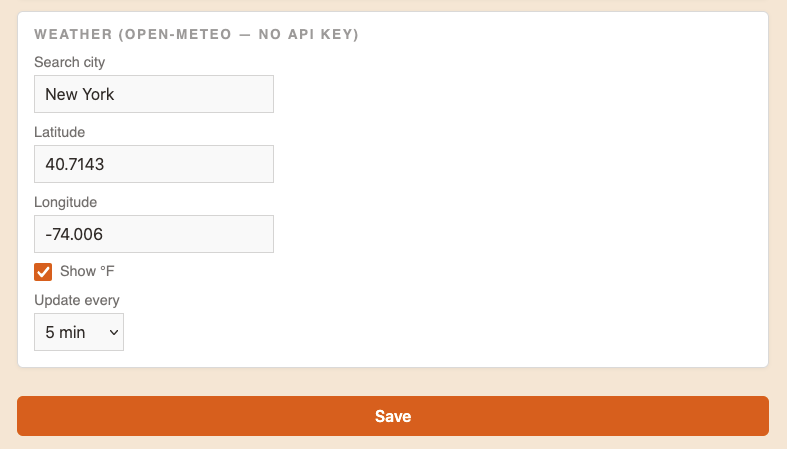
Search for any city in the world (powered by Open-Meteo — no account or API key needed) and pick it from the results. Shows current temperature, "feels like," humidity, wind, and conditions, in °C or °F.
📷 Add screenshot
assets/screens/weather.png
📷 Add screenshot
assets/screens/weather.png
📅 3-Day Forecast
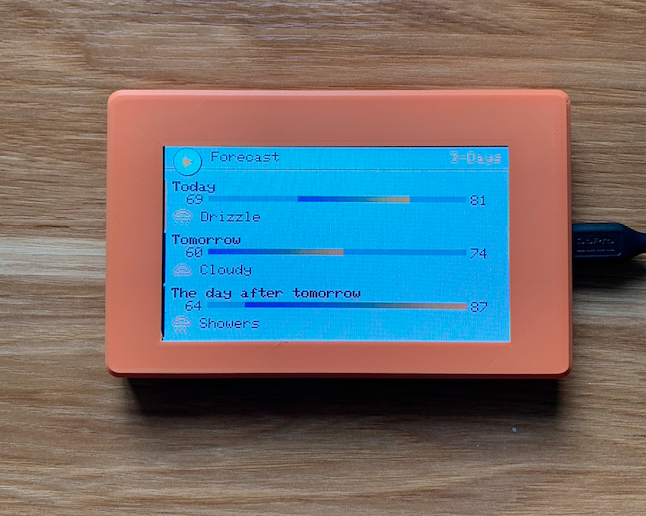
Today plus the next two days, for the same city as the Weather screen. Each day shows a low-to-high range bar (colder on one end, warmer on the other) so you can see at a glance which of the three days is relatively hot or cold.
📷 Add screenshot
assets/screens/forecast.png
ℹ️ Device Info
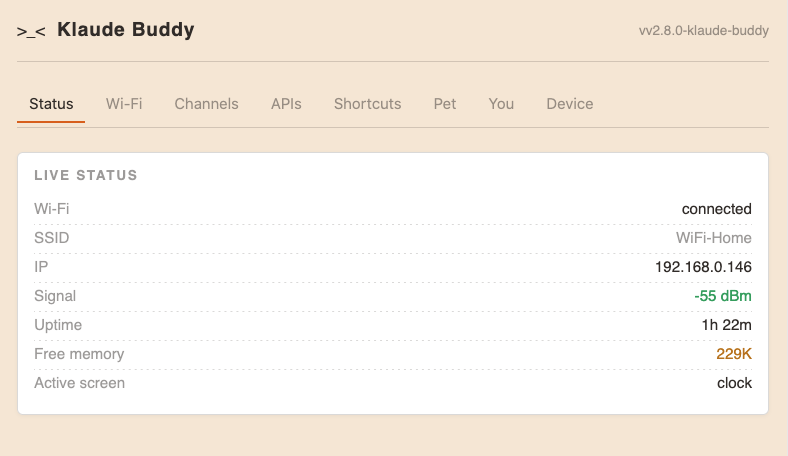
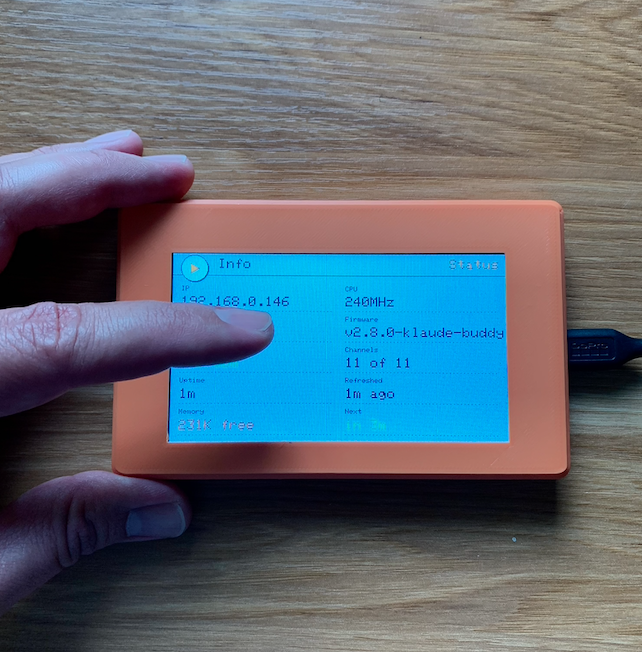
Diagnostics at a glance: IP address, Wi-Fi network and signal strength, uptime, free memory, CPU speed, firmware version, how many screens are active, and when data was last refreshed.
📷 Add screenshot
assets/screens/info.png
🔌 Custom APIs APIs tab
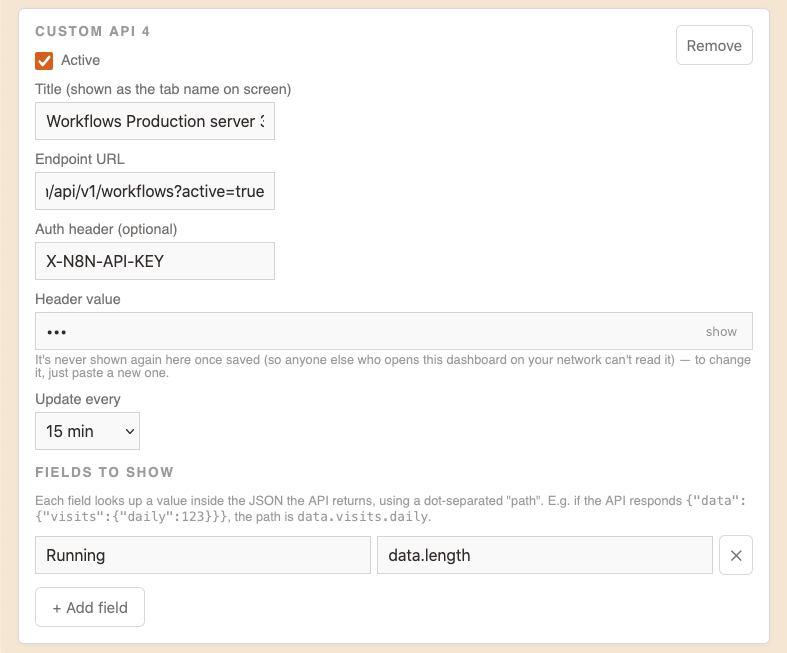
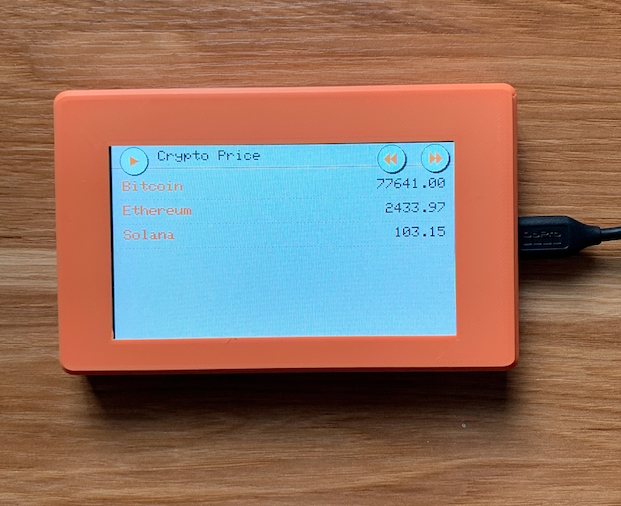
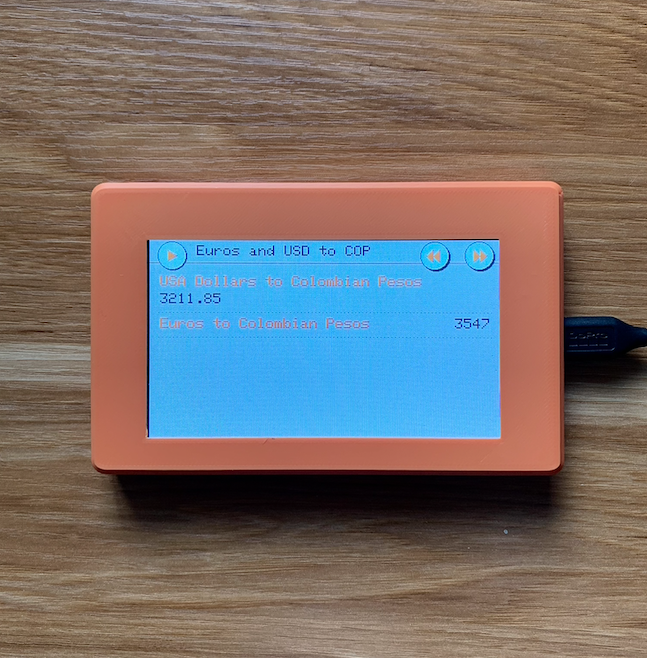
Connect up to 8 of your own APIs — anything that returns JSON. For each one you set a title, the endpoint URL, an optional auth header, and how often it refreshes (from every 5 minutes up to once a day). Then pick which values to show by pointing at a field inside the response, e.g. data.visits.daily.
Each API supports up to 24 fields, shown 4 per page (so up to 6 pages), automatically paging through with its own turn on screen — no scrolling or tapping needed.
Several APIs on one screen: turn on "Multiple APIs on this screen" for an API and use "+ Add another API to this screen" to add up to 4 different APIs (each with its own URL and optional auth), then add the values you want from each with "+ Add field from this API". Each API is called only once per refresh, no matter how many values you take from it, and if one is down only its values show --. Leave a label blank to show just the value, e.g. a lone number like 3.
Organizing your APIs: click the title bar of any API to collapse or expand it. Drag it by the ⠿ handle (or use the ▲ ▼ buttons) to change the order the screen rotates through. Your collapsed/expanded choices are remembered in your browser.
📷 Add screenshot
assets/screens/custom-apis.png
📷 Add screenshot
assets/screens/custom-apis.png
📷 Add screenshot
assets/screens/custom-apis.png
🔗 Shortcuts Needs companion app
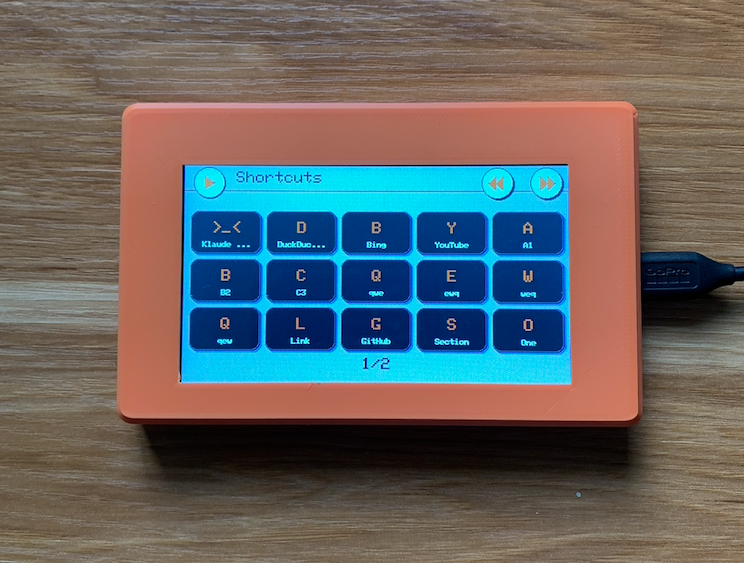
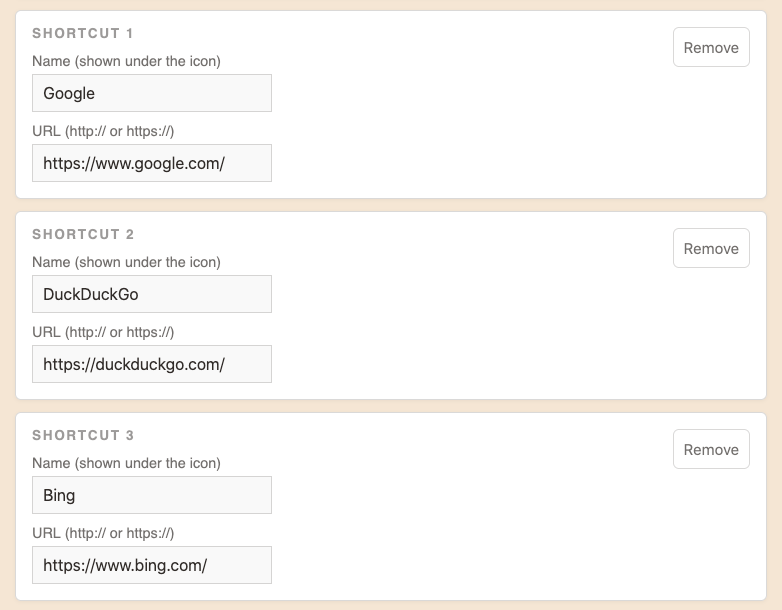
Up to 45 one-tap shortcuts to your favorite links, shown 15 per page (so up to 3 pages) — swipe to move between pages, or use the "‹ page/total ›" buttons at the bottom of the screen. This needs a small companion app running on a computer connected to the device by USB — tapping a shortcut tells that computer to open the link in its browser.
Each shortcut can show a real icon instead of just the first letter of its name — pick one from the dashboard's icon dropdown next to each link. Leave it on "None" to keep the big-letter look.
A brand-new device comes with one shortcut already loaded — the >_< icon, which opens the device's own dashboard in your browser. Edit or delete it like any other shortcut; it's just a convenient default, not something special.
📷 Add screenshot
assets/screens/shortcuts.png
📷 Add screenshot
assets/screens/shortcuts.png
📋 Clipboard Needs companion app
Swipe left/right on the device to move between pages (or use the "‹ page/total ›" buttons at the bottom of the screen) — every page is customizable from the dashboard's Clipboard tab, including Page 1. Nothing needs to be reconfigured out of the box: Page 1 ships with Select All, Cut, New Tab, Copy, Paste, All Apps, and Desktop already set, and Pages 2 and 3 ship with a curated set of the most-used shortcuts (Undo, Redo, Find, Save, Switch App, Screenshot, Refresh, Reopen Tab, Print, Zoom In, Zoom Out, Lock) — change any slot on any page to whatever you actually want.
Want more than 3 pages? The dashboard's Clipboard tab has a "Total pages after Page 1" dropdown (1 to 6) — raise it to add more customizable pages, 6 slots each. Lowering it again never loses what you'd saved on a page you hide this way.
Same companion app as Shortcuts — needs v2.11.0 or later for the new actions to work.
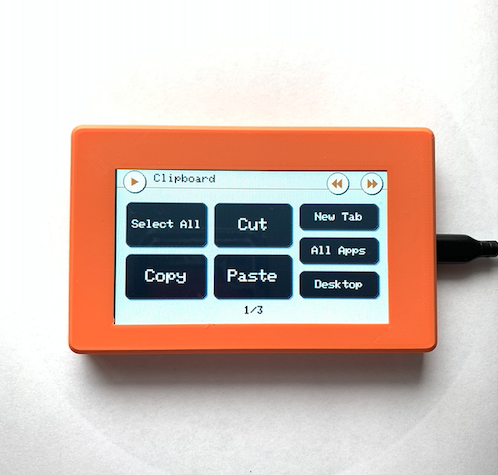
📷 Add screenshot
assets/screens/clipboard.png
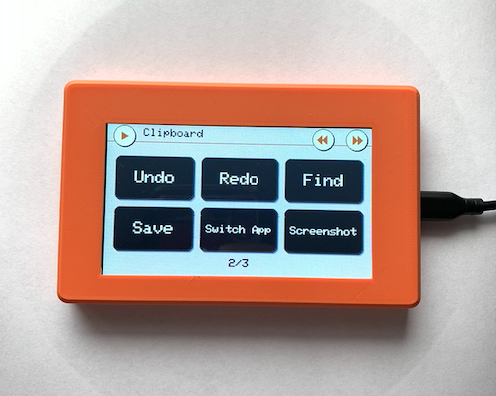
📷 Add screenshot
assets/screens/clipboard.png
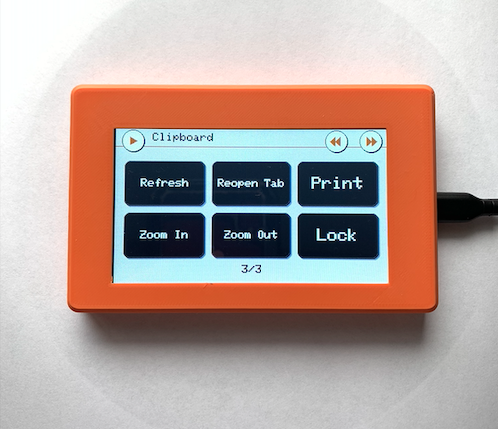
📷 Add screenshot
assets/screens/clipboard.png
📷 Add screenshot
assets/screens/clipboard.png
💻 The companion app For Shortcuts, Clipboard, Trackpad, Keyboard & Media
A small desktop app that sits in the background on a computer connected to the device by USB. It listens for taps on the Shortcuts, Clipboard, Trackpad, Keyboard and Media screens and acts on them — opening a link in your browser, simulating a keyboard shortcut, moving the mouse, typing a key, or sending a media key. It never runs arbitrary commands, only those specific, safe actions from a fixed list.
The device needs to stay physically plugged into that computer by USB the whole time — these screens talk to the app over that same USB cable, not over Wi-Fi or the network. If you unplug it, or plug it into a different computer, only that connected computer's companion app (if running) will respond to taps.
⬇️ Download for Windows · 🍎 Download for Mac
Windows setup:
- Run
KlaudeShortcutsSetup.exe and follow the installer (Next → Install → Finish).
- It starts automatically once installed, and sets itself to launch every time you log in — no need to open anything by hand afterward.
- Already have an older version installed? Just run the new installer over it — it upgrades in place, no need to uninstall first.
- To remove it later: Settings → Apps (or Control Panel → Programs), find Klaude Shortcuts, and uninstall — it's a proper entry, not just a loose file.
Mac setup: unzip the download first — you'll get KlaudeShortcutsInstaller.pkg and a separate uninstaller. The .pkg isn't signed by a registered Apple developer yet, so macOS blocks it the first time; this is a one-time step.
- Double-click
KlaudeShortcutsInstaller.pkg.
- If you see "cannot be opened because it is from an unidentified developer": open System Settings → Privacy & Security, scroll down, and click Open Anyway next to the message about the blocked installer (confirm with your password or Touch ID). Then double-click the
.pkg again.
- If instead it says the installer "is damaged and can't be opened", that's Gatekeeper reacting to the browser's download quarantine flag, not an actual broken file — open Terminal and run
xattr -cr ~/Downloads/KlaudeShortcutsInstaller.pkg (adjust the path if you saved it elsewhere), then open it normally.
- Follow the installer (it'll ask for your Mac password since it installs into Applications). It installs the app, sets it to launch on login, and opens it once automatically.
- Separately from the step above, Clipboard, Trackpad, Keyboard and Number Pad all need one more permission to work (Shortcuts — just opening links — doesn't): go to System Settings → Privacy & Security → Accessibility (a different tab from the one used to unblock the installer) and turn on every checkbox you see named KlaudeShortcuts. macOS sometimes lists it there twice with two different icons — check the one that looks like a little terminal window too, not just the first one you spot.
- Installing a newer version over an older one and Trackpad/Keyboard/Number Pad suddenly stop responding? Go back to that same Accessibility list and switch the KlaudeShortcuts checkbox (the one with the terminal-window icon) off, then on again. macOS ties this permission to the exact app file, so updating it can leave the old permission stale until you toggle it once.
- To remove it later, double-click "Uninstall KlaudeShortcuts.command" (included in the same zip) — no Terminal commands needed.
Either platform, once installed: plug the device in by USB-C, open the Shortcuts screen on it, and tap one — a browser tab should open with that link, coming to the front even if you were doing something else on the computer.
🔢 Number Pad Channels tab · Needs the companion app
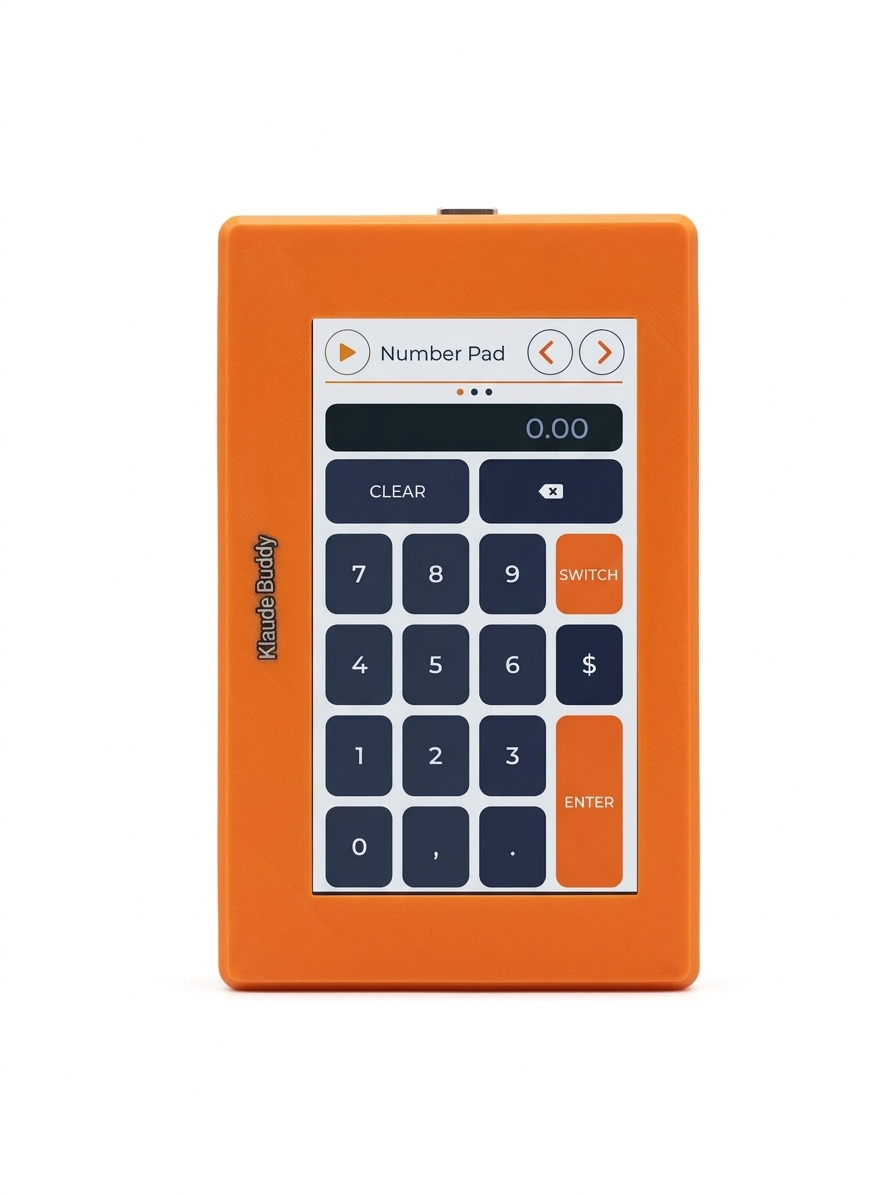
Turns the device into an actual number pad for the computer it's plugged into. Rotate the device 90° to the left (the cable ends up pointing up) and it switches to a tall, portrait keyboard — the same USB connection Shortcuts and Clipboard already use, so the companion app above needs to be installed and running.
Three pages, switched with the button above Enter: Numbers (0-9, comma, period, $), Operators (+ − × ÷ =, Cut/Copy/Paste, a button to open the calculator), and Navigation (arrows, Home/End/Page Up/Page Down, Tab, Esc, Undo/Redo). The two round buttons at the top switch to the next/previous screen on the device, same as everywhere else — they don't change the number pad's page.
Every key press is a real keystroke sent to whatever has focus on the connected computer — type into a spreadsheet cell, a calculator app, anywhere a cursor is blinking.
📷 Add screenshot
assets/screens/numpad-numbers.png
🖱️ Trackpad Channels tab · Needs the companion app
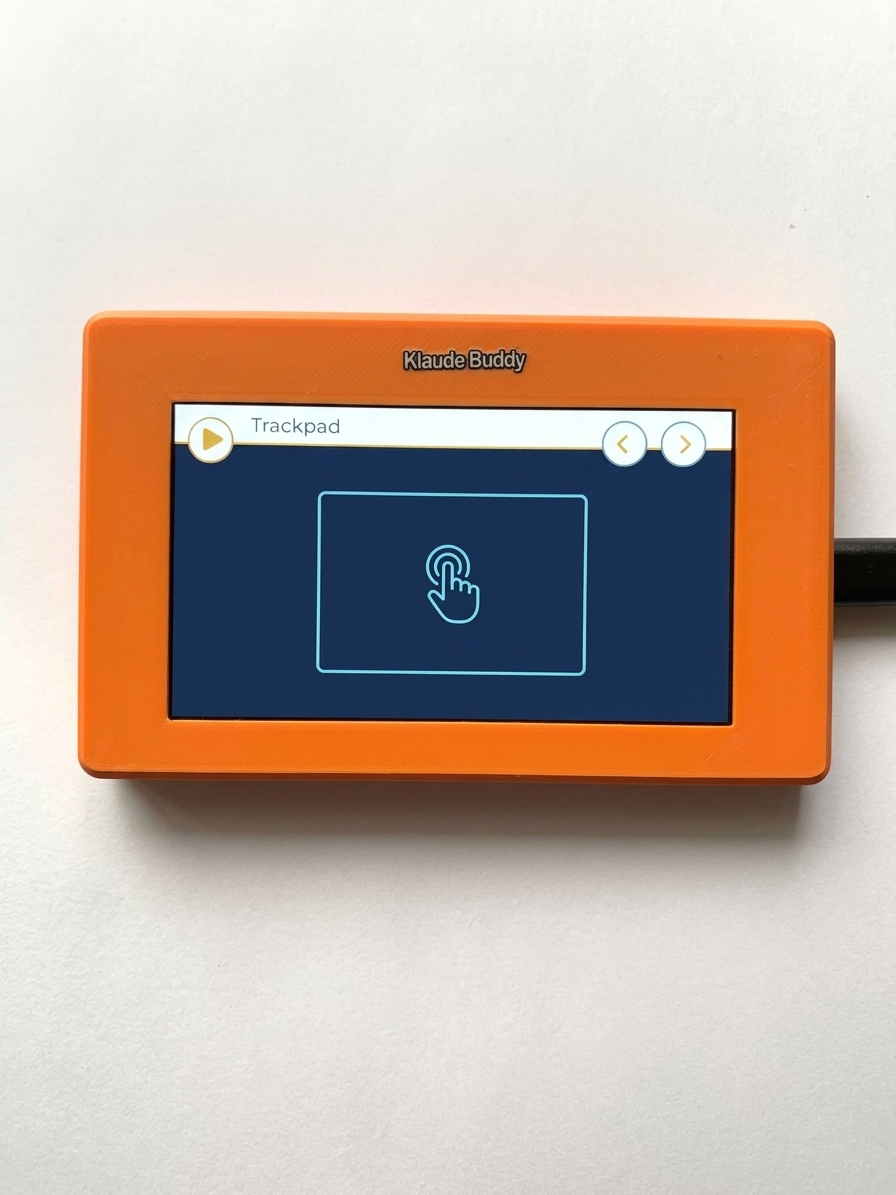
Turns the device into a real trackpad for the computer it's plugged into. Drag with one finger to move the mouse cursor, tap to click. Put two fingers down and move them to scroll, or tap with two fingers for a right-click — works the same way on Windows and Mac.
The two round buttons at the top switch to the next/previous screen on the device, same as everywhere else.
📷 Add screenshot
assets/screens/trackpad.png
⌨️ Keyboard Channels tab · Needs the companion app
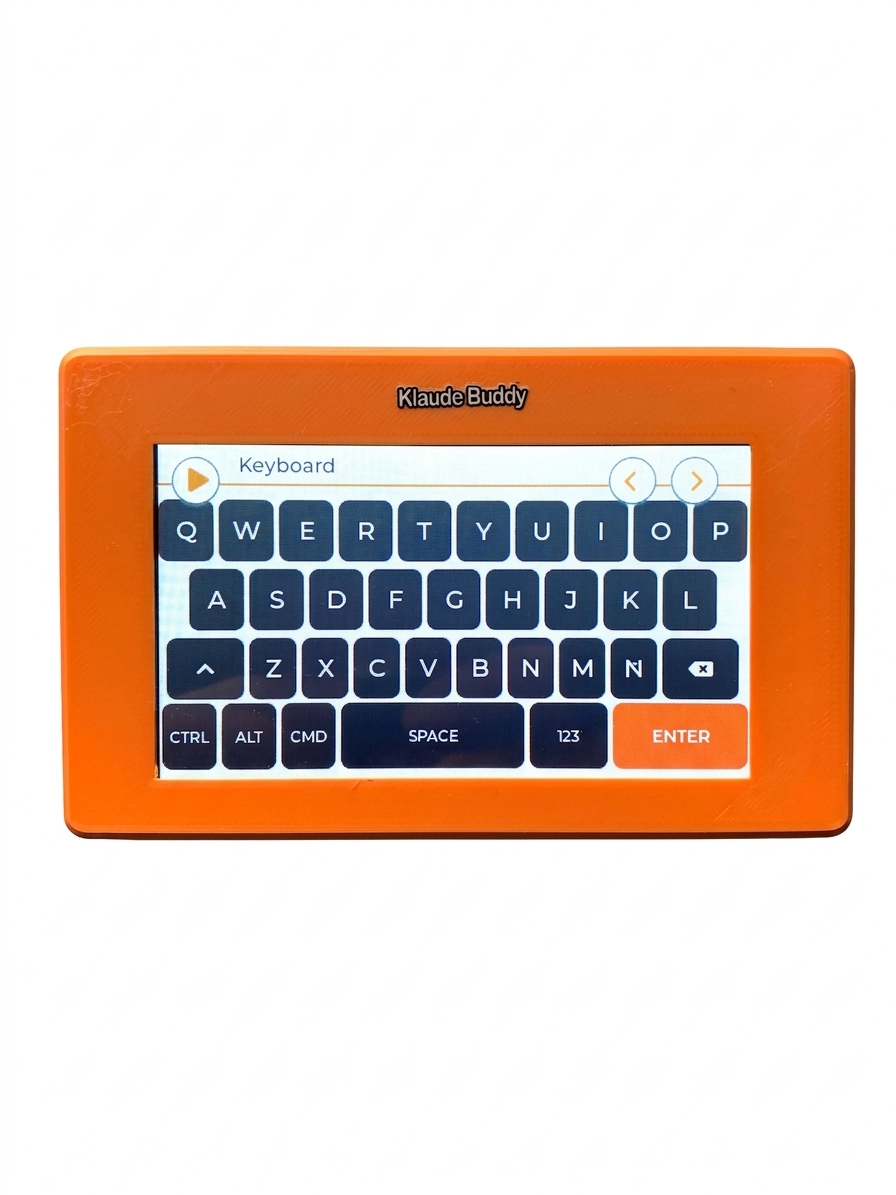
A full QWERTY keyboard for the computer it's plugged into. Three pages, switched with the button next to Enter: ABC (letters, with Shift and Backspace), 123 (digits and common symbols like @ # & "), and #+= (the rest of the symbols). A dedicated Ñ key is included on the letters page.
CTRL / ALT / CMD sit to the left of the space bar on every page — tap one to arm it (it turns orange), then tap any key to send that combination (e.g. arm CTRL, tap C, for Ctrl+C) without ever leaving the letters page.
📷 Add screenshot
assets/screens/keyboard-abc.png
🎵 Media Channels tab · Needs the companion app
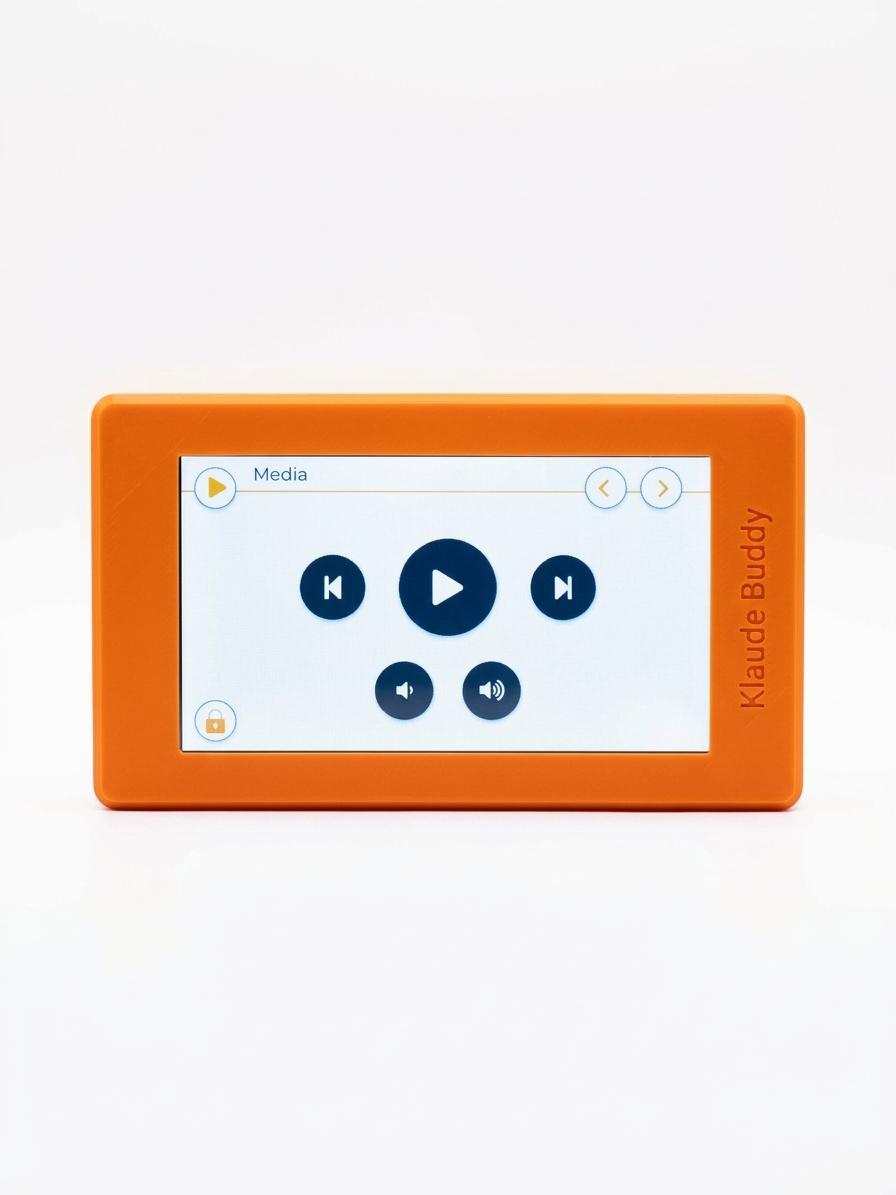
Play/pause, skip to the next or previous track, and adjust volume — sends real operating-system media keys, so it works with Spotify, YouTube, VLC, or whatever is currently playing, with no per-app setup.
📷 Add screenshot
assets/screens/media.png
📊 Claude Usage Channels tab
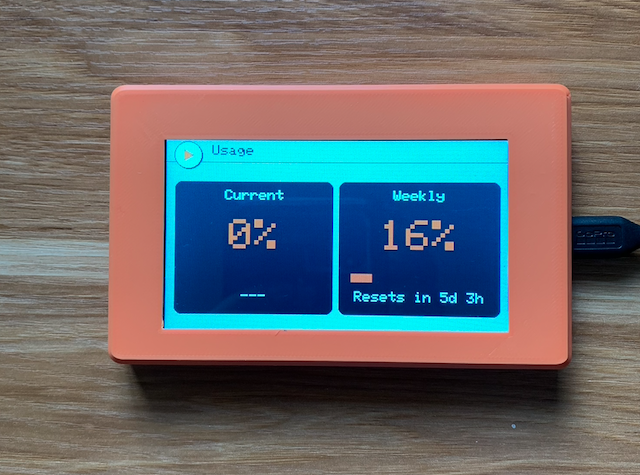
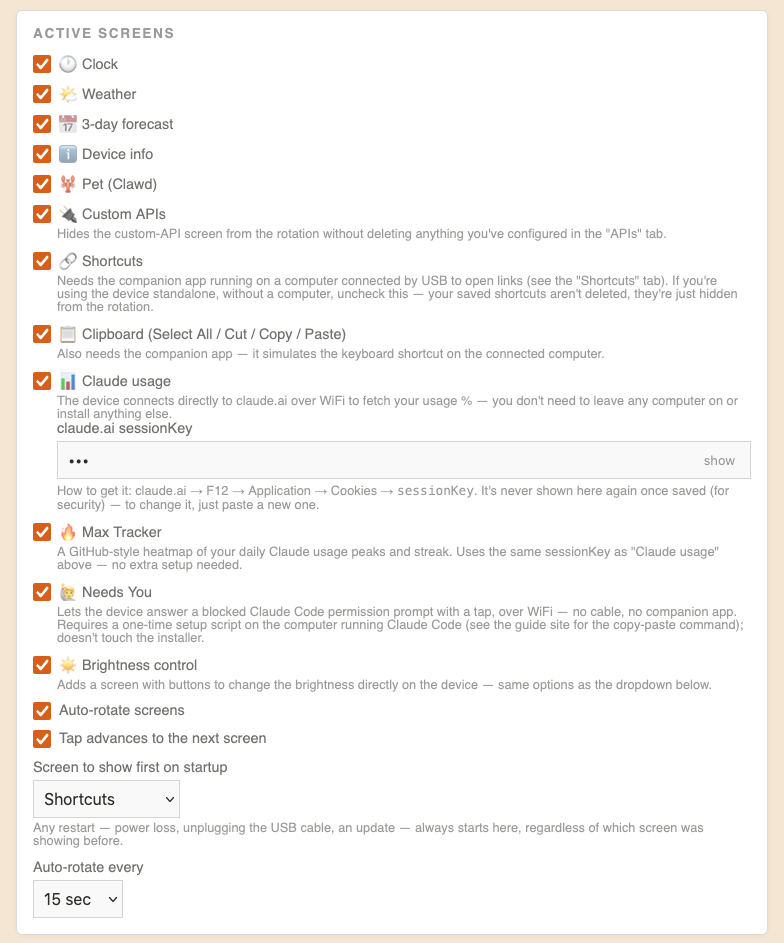
Paste your claude.ai session key once, and the device fetches your usage directly over Wi-Fi — no computer needs to stay on. Shows your current 5-hour window and weekly usage side by side, each with a countdown to when it resets.
📷 Add screenshot
assets/screens/claude-usage.png
📷 Add screenshot
assets/screens/claude-usage.png
🔥 Max Tracker Channels tab
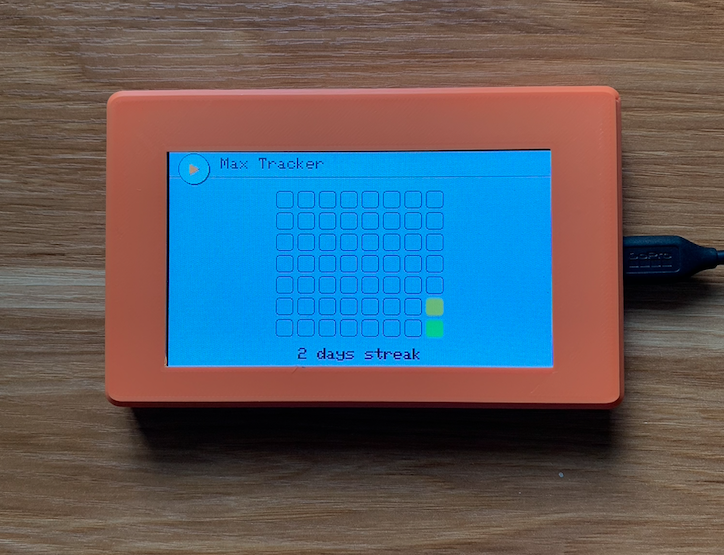
A GitHub-style heatmap of your daily Claude usage peaks over the last 8 weeks, plus your current streak. Rides the same session key as Claude Usage above — if that's already set up, there's nothing else to configure.
- 🟢 Green: peak under 60% that day — comfortable usage.
- 🟠 Orange: peak between 60% and 84% — getting close to the limit.
- 🔴 Red: peak of 85% or higher — nearly maxed out that day.
📷 Add screenshot
assets/screens/max-tracker.png
🙋 Needs You Channels tab · Needs companion app once
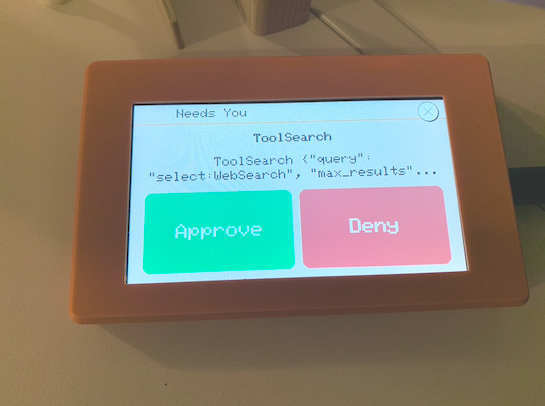
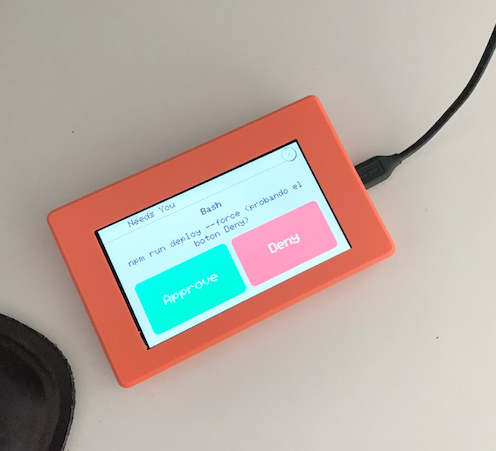
Answer a blocked Claude Code permission prompt with a tap on the device — over Wi-Fi, no USB cable needed at the moment it happens. When a PreToolUse hook fires, the display interrupts whatever screen was showing with the tool name and a short summary, plus a quick brightness flash so it's hard to miss.
Tap Approve or Deny to answer directly. The ✕ in the corner dismisses the popup without deciding — the device goes back to normal, and Claude Code falls back to asking you in the terminal as usual.
Setup is one-time and mostly automatic: if you already have Claude Code configured on the same computer running the companion app (see Shortcuts below), the app registers the hook by itself the first time it opens — no separate script to run. Then just turn on Needs You in the dashboard's Channels tab.
📷 Add screenshot
assets/screens/needs-you.png
☀️ Brightness Channels tab
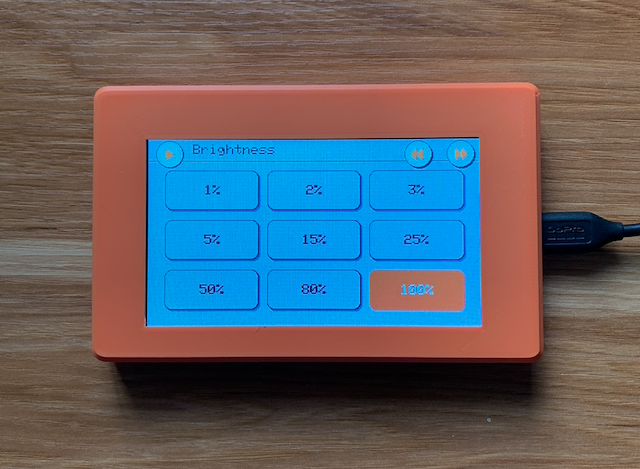
A grid of buttons to change the screen's brightness by tapping the device directly, without opening the dashboard — same options as the brightness dropdown in Device settings.
📷 Add screenshot
assets/screens/brightness.png
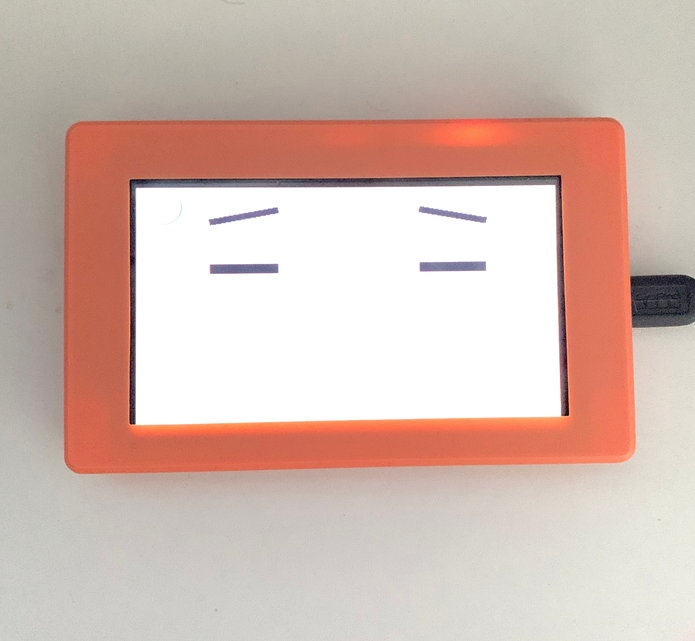
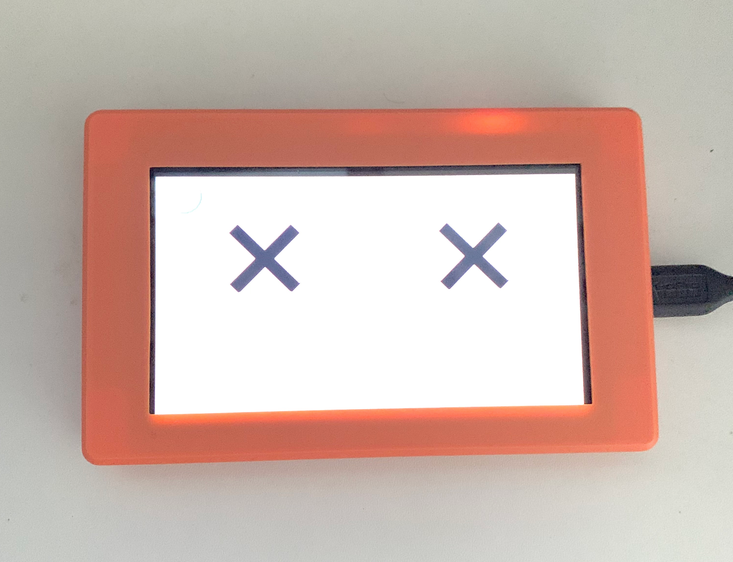
🦞 Pet Channels tab
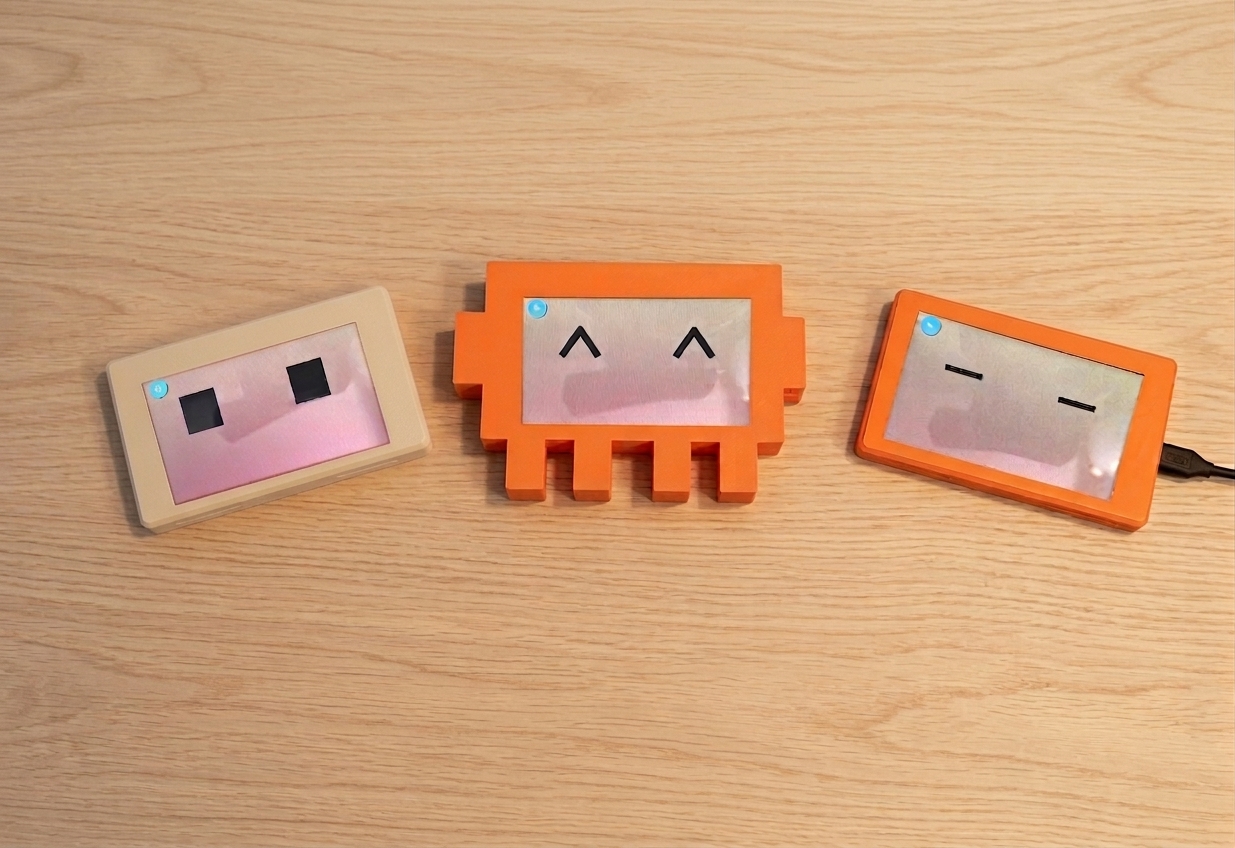
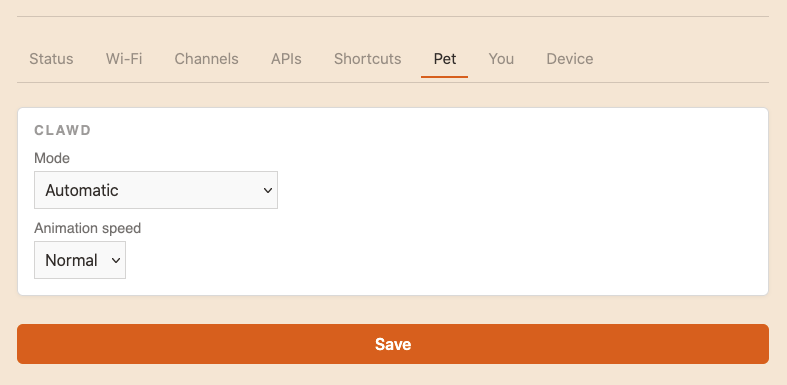
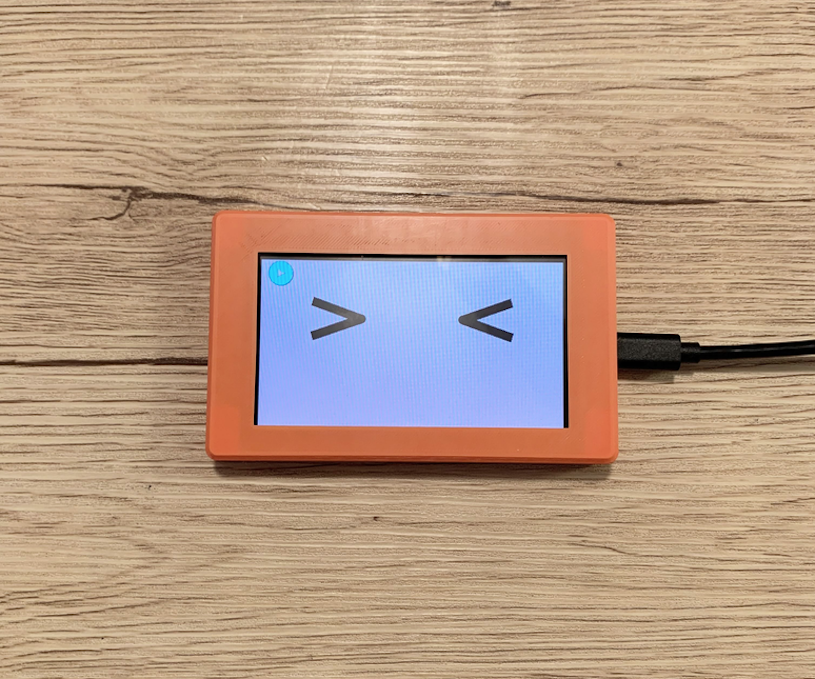
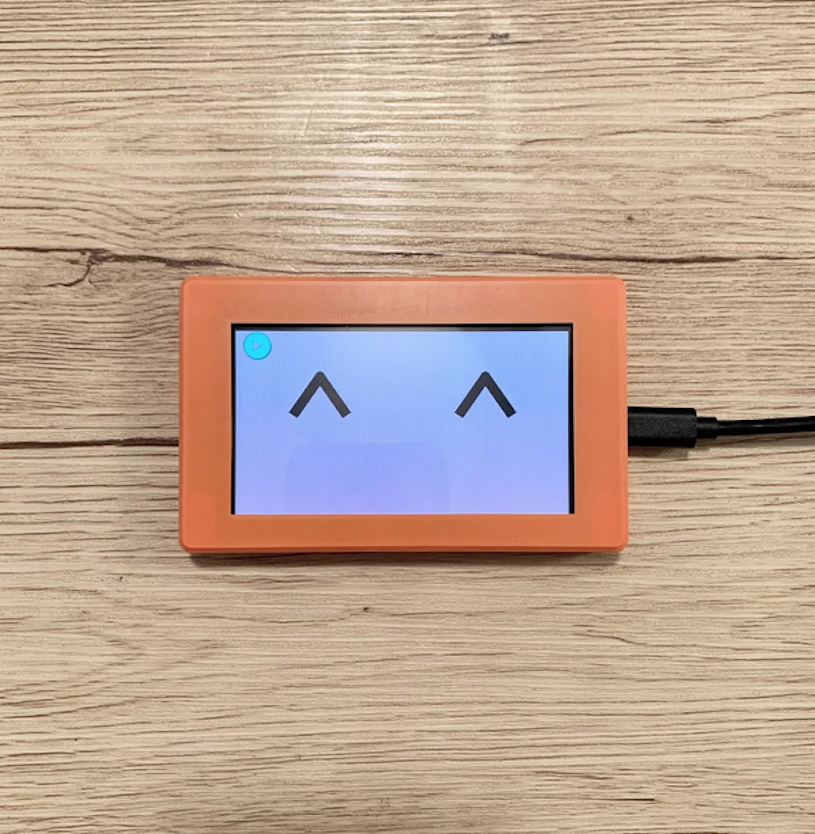
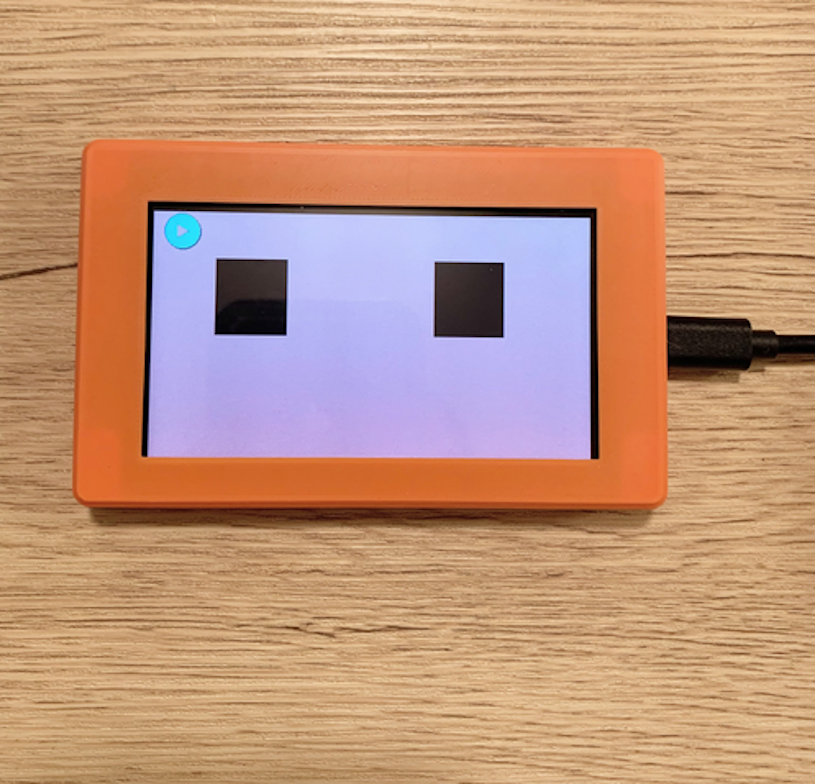
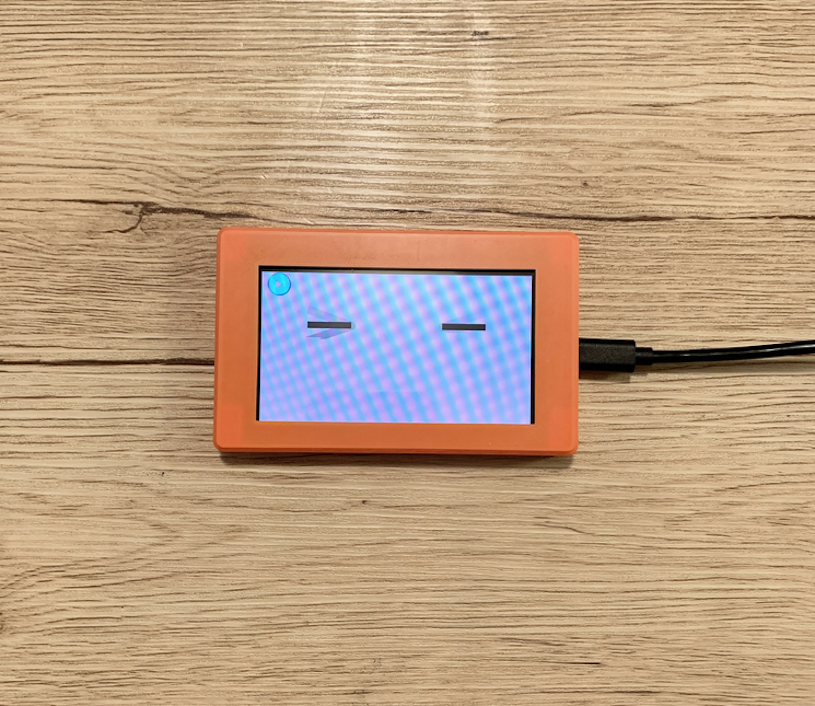
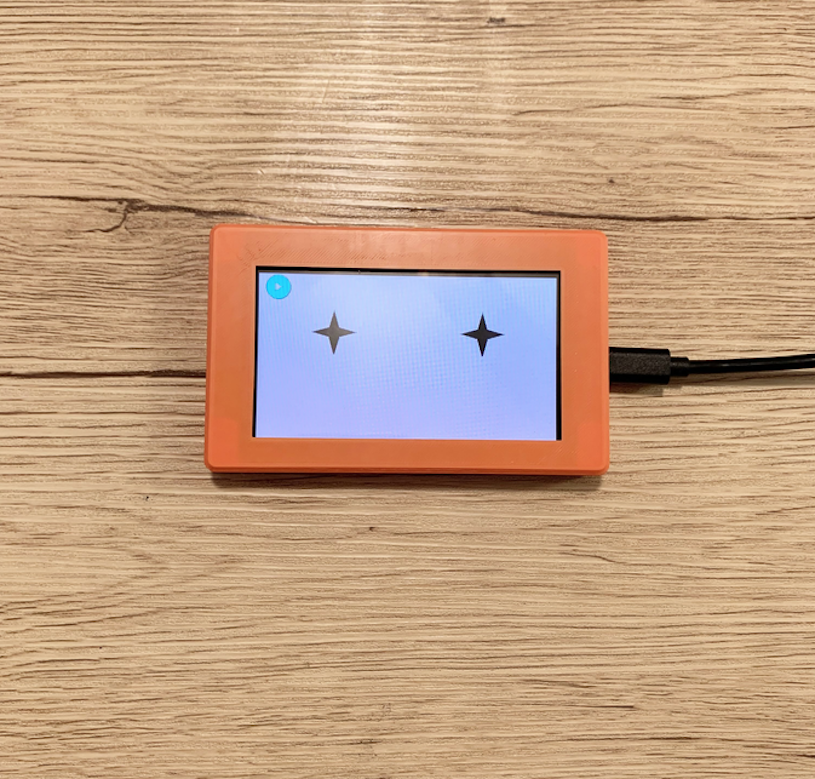
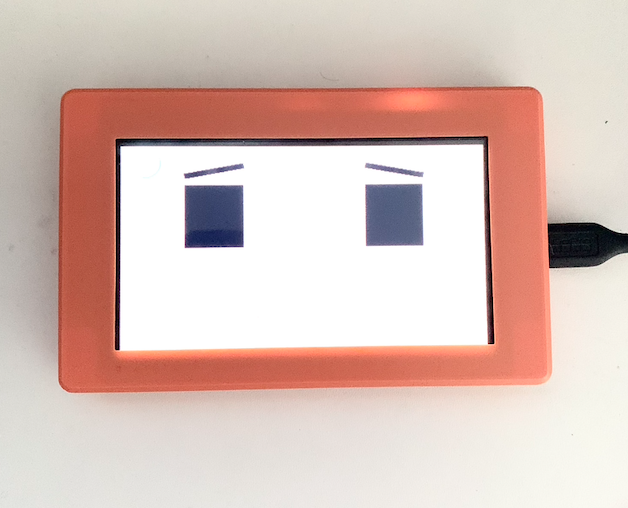
Your device's own mascot. In Automatic mode it reacts to how fast you're using up your Claude quota; in Manual mode you pick a fixed expression yourself.
📷 Add screenshot
assets/screens/pet-manual.png
📷 Add screenshot
assets/screens/pet.png
📷 Add screenshot
assets/screens/pet-automatic.png
📷 Add screenshot
assets/screens/pet-manual.png
📷 Add screenshot
assets/screens/pet-manual.png
📷 Add screenshot
assets/screens/pet-manual.png
📷 Add screenshot
assets/screens/pet-manual.png
📷 Add screenshot
assets/screens/pet-manual.png
📷 Add screenshot
assets/screens/pet-manual.png